- You have no items in your shopping cart
- Continue Shopping

One of the most important steps in getting high-quality DTF transfers is uploading the correct file format. The wrong format can lead to blurry prints, unwanted backgrounds, or incorrect sizing—even if your design looks fine on screen.
In this guide, we’ll compare PNG vs PDF vs SVG, explain which format works best for DTF printing, and share resolution and transparency tips to help you get professional results every time.
Why File Format Matters in DTF Printing
DTF printing reproduces your artwork exactly as uploaded. That means:
- Low-quality files = low-quality prints
- Incorrect backgrounds = unwanted borders
- Wrong scaling = blurry or pixelated designs
Choosing the right format ensures:
- Sharp edges
- Vibrant colors
- Clean, professional finishes
PNG vs PDF vs SVG: What’s the Difference?
PNG — Best Overall Choice for DTF
PNG is the most commonly recommended file format for DTF printing.
✅ Pros:
- Supports transparent backgrounds
- Preserves color detail
- Easy to upload and preview
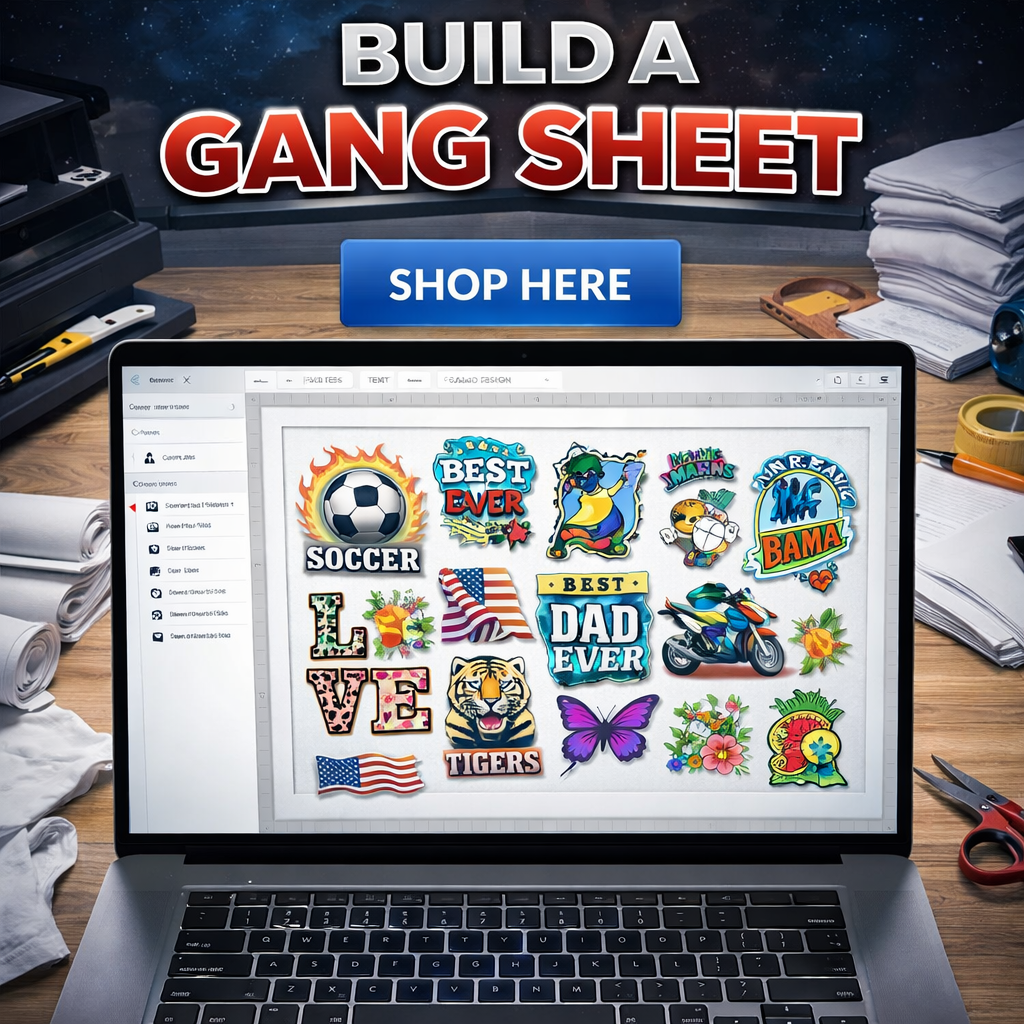
- Works perfectly with gang sheet builders
❌ Cons:
- File size can be large
- Not ideal for text edits after export
👉 Best for:
Logos, illustrations, and ready-to-print designs.
PDF — Best for Print-Ready Designs
PDF files are excellent for professional, print-ready artwork.
✅ Pros:
- Maintains exact size and layout
- High-resolution output
- Ideal for vector-based designs
- Supports transparency (when set correctly)
❌ Cons:
- Can cause issues if fonts aren’t outlined
- Some PDFs flatten backgrounds unintentionally
👉 Best for:
Designers and experienced users exporting final artwork.
SVG — Use with Caution
SVG files are vector-based and scale infinitely—but they’re not always ideal for DTF uploads.
✅ Pros:
- Infinite scalability
- Small file size
- Great for simple logos
❌ Cons:
- May not preview correctly in some builders
- Gradients and effects can render incorrectly
- Often requires conversion before printing
👉 Best for:
Simple vector logos that will be converted to PNG or PDF before upload.
Which File Format Should You Use?
Quick answer:
- PNG → Best for most users
- PDF → Best for print-ready designs
- SVG → Convert before uploading
If you’re unsure, PNG at 300 DPI with transparency is the safest choice.
Resolution Tips for DTF Printing
Resolution directly affects print clarity.
✅ Recommended Resolution
- 300 DPI (dots per inch) at final print size
❌ Avoid:
- Screenshots
- Web images (72 DPI)
- Upscaling small images
📌 A small file stretched larger will always look blurry.
Transparency Tips (Very Important)
DTF prints everything in your file—including backgrounds.
✔ Best Practices:
- Use transparent backgrounds
- Avoid white boxes behind designs
- Export PNGs with transparency enabled
- Double-check your preview before ordering
Transparent files ensure clean edges and professional results.
Pro Tip: Match File Size to Final Print Size
Always create your artwork at the exact size you want printed. Resizing after upload can reduce quality—especially for raster images.
Using the correct file format is one of the easiest ways to improve your DTF results. For most users, PNG at 300 DPI with a transparent background is the best option. More advanced users can rely on PDFs, while SVGs should be converted before printing.
A good file leads to a great print—and fewer costly mistakes.